Understanding the Dashboard
The Dashboard is the first thing you see after logging in to bot.riin.eu. It gives you a complete overview of…
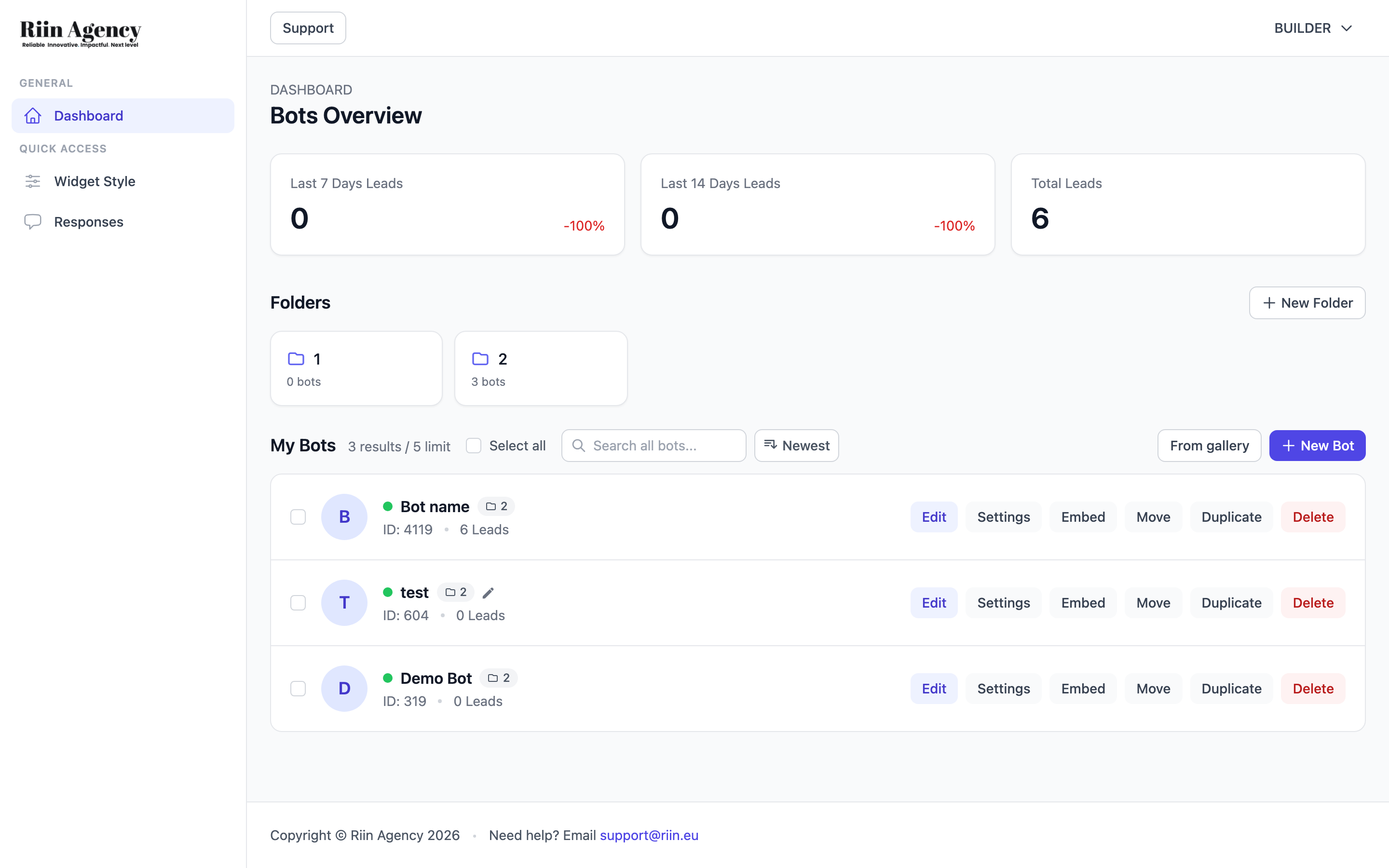
The Dashboard is the first thing you see after logging in to bot.riin.eu. It gives you a complete overview of all your chatbots and their performance at a glance.
Lead Statistics
At the top, three cards show your lead performance: Last 7 Days Leads, Last 14 Days Leads, and Total Leads. Each card also shows the percentage change compared to the previous period, so you can quickly see if your bots are performing better or worse.
Folders
Below the stats, you’ll find the Folders section. Use folders to organize your bots by project, client, or purpose. Click + New Folder to create one, then use the Move button on any bot to file it away.
My Bots
The My Bots section lists all your chatbots. For each bot, you can see its name, ID, status (green dot = active), and total leads collected. Each bot has action buttons:
- Edit — open the bot builder (Widget Style page)
- Settings — configure bot settings and integrations
- Embed — get the embed code or share link
- Move — move the bot to a folder
- Duplicate — create a copy of the bot
- Delete — permanently remove the bot
Use the search bar to find bots by name, and the sort button to change the order (Newest, Oldest, etc.).
Creating a New Bot
Click + New Bot to create a chatbot from scratch, or From Gallery to start from a pre-built template. The bot limit shown next to “My Bots” tells you how many bots your current plan allows.
Sidebar Navigation
Once you open a bot, the left sidebar shows two sections:
- GENERAL — Dashboard (back to overview)
- QUICK ACCESS — Widget Style, Responses (shortcuts to the currently selected bot’s settings)
- BOT TOOLS — Widget Style, Flow Builder, Settings, Reports, AI Knowledge Studio, Responses, AI Chat Log, Integration Code
Each of these tools is covered in detail in its own help article.