Managing Bots
As your bot collection grows, you'll want to keep things organized. This article covers all the tools available for managing…
As your bot collection grows, you’ll want to keep things organized. This article covers all the tools available for managing your bots from the Dashboard.
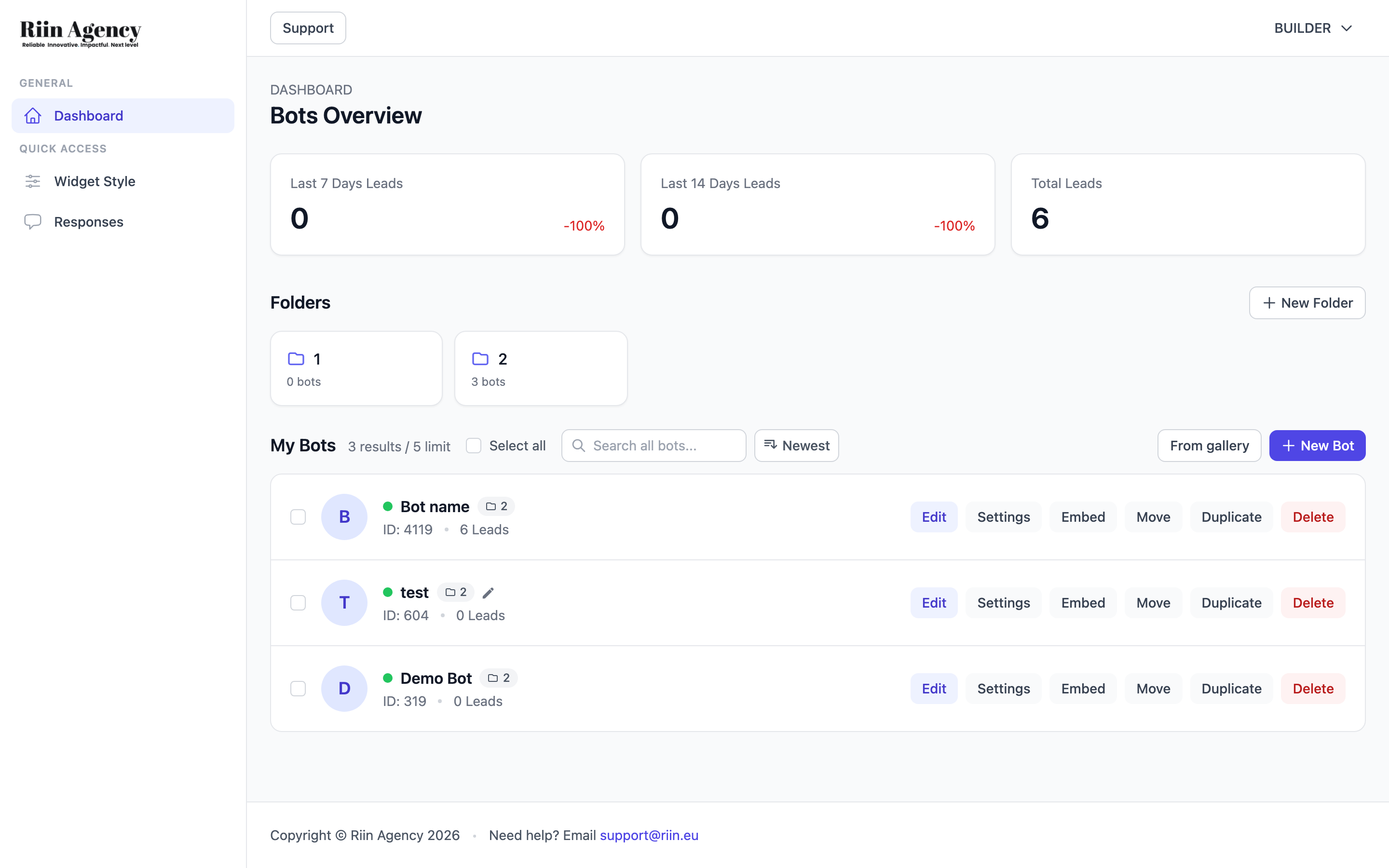
Bot Actions
Every bot on your Dashboard has a row of action buttons:
- Edit — opens the bot builder (Widget Style page), where you can access all bot tools
- Settings — goes directly to the bot’s Settings page
- Embed — opens the embed pop-up with your integration code and public share link
- Move — move the bot into a folder
- Duplicate — creates an exact copy of the bot with all its settings, flow, and AI configuration. Useful for creating variations or backups.
- Delete — permanently removes the bot and all its data. A confirmation dialog appears before deletion. This cannot be undone.
Using Folders
Folders help you organize bots by client, project, or purpose. To create a folder, click + New Folder in the Folders section of the Dashboard. Give it a name and click Create.
To move a bot into a folder, click the Move button on the bot, then select the target folder. You can also move bots between folders the same way.
Searching and Sorting
Use the search bar above the bot list to find bots by name. Click the sort button (next to the search bar) to change the order — Newest first, Oldest first, or alphabetical.
Bot Limits
Your plan determines how many bots you can create. The current count is shown next to “My Bots” (e.g., “4 results / 5 limit”). If you’ve reached your limit, you’ll need to delete an existing bot or upgrade your plan to create a new one.
Selecting Multiple Bots
Use the checkboxes next to each bot to select multiple bots at once. Use Select all to select everything. This is useful for bulk operations like moving multiple bots to a folder.