Bot Builder (Flow)
Build your bot like a flowchart — no code needed.
The Flow Builder lets you design your bot one step at a time. You drag blocks onto a canvas and connect them with lines. It feels like drawing a map of the conversation.
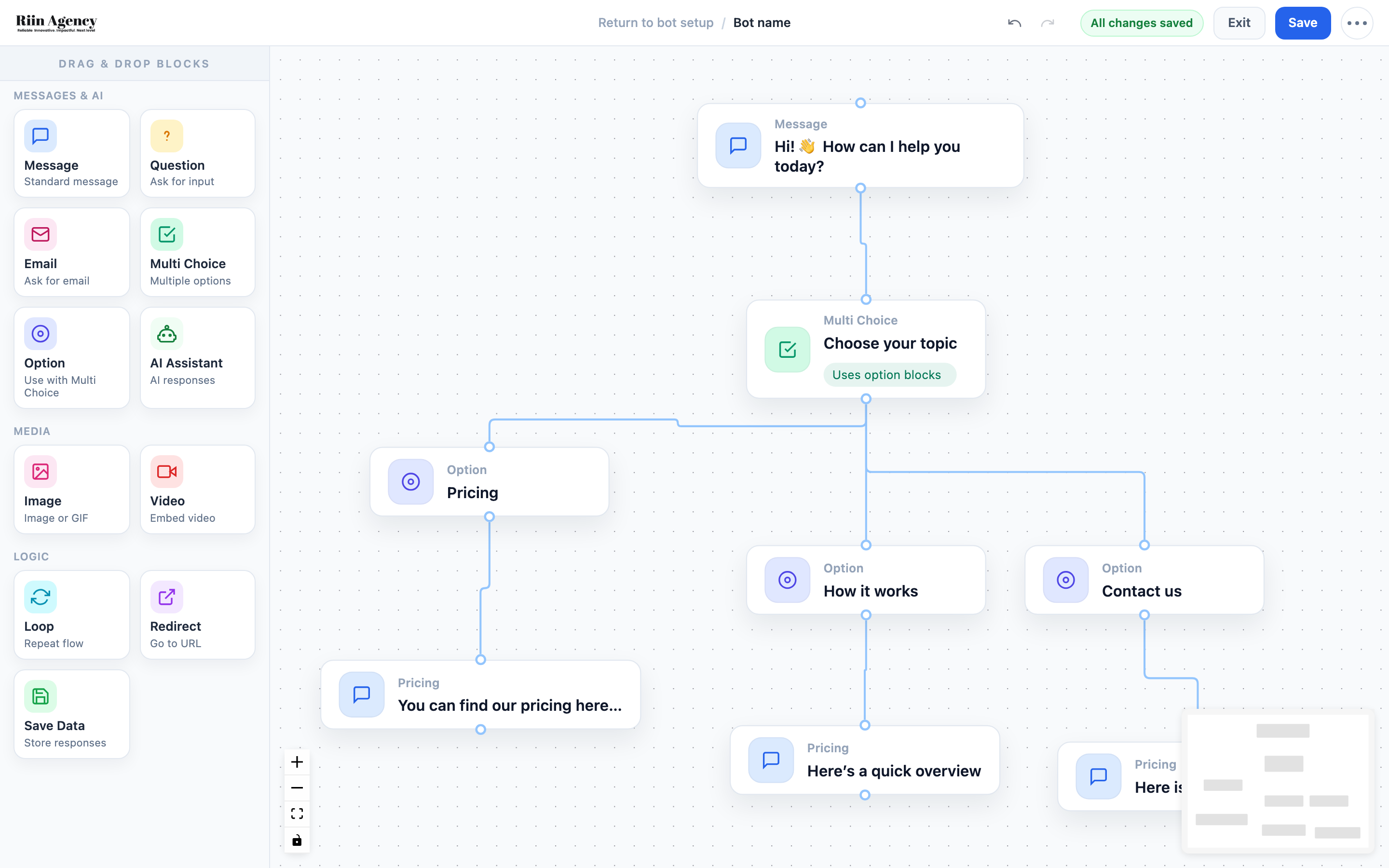
Use Flow Builder when you want to:
- Collect emails or phone numbers.
- Ask multiple-choice questions ("Which product are you looking for?").
- Send people to different answers based on what they pick.
- Trigger an integration (like sending a lead to Google Sheets).
If you just want the bot to chat freely, use Standalone AI Chat instead. See Flow Builder vs Standalone.
The block types
You build flows from these blocks:
Messages & AI
- Message — the bot says something. Plain text.
- Question — asks the visitor to type a free-text answer.
- Email — asks for an email and checks the format.
- Multi Choice — shows clickable options (use with Option blocks).
- Option — one clickable choice. Sits under a Multi Choice.
- AI Assistant — hands the conversation over to the AI for one or more turns.
Media
- Image — show a picture or GIF.
- Video — embed a YouTube or Vimeo video.
Logic
- Loop — repeat the flow from a certain point.
- Redirect — send the visitor to a URL.
- Save Data — store the answers so far (used with integrations).
Important rule: Message before AI, never Question
If you use an AI Assistant block, always put a Message block right before it. Something like "Sure, ask me anything!"
Two reasons:
- The AI block is silent until the visitor types. Without a hint, they see nothing happen and get confused.
- Never use a Question block before an AI Assistant block. The Question block eats the visitor's first message, so they have to type their question twice. This is the most common Flow Builder mistake.
Exit AI Mode — back to the flow
Normally, once a visitor enters the AI Assistant, the AI keeps the conversation forever. With Exit AI Mode the bot can leave the AI conversation and continue your structured flow.
A flow that works well in practice:
- Message: "Ask me anything about our services!"
- AI Assistant — answers the visitor's questions. Exit is set up in this block's settings.
- After exit → Multi Choice: "Would you like to book a time?" [Yes] [No]
- Yes → Message with your booking link. No → back into another AI Assistant block for more questions.
Things to know:
- Set up the exit inside the AI Assistant block settings. After exit, the flow continues from the next connected block.
- If you loop back into a second AI Assistant block, put a Message block before it (the AI waits for the visitor to type).
- Each AI Assistant block can have its own Custom Prompt (up to 250,000 characters per block). So one block can answer general questions from your Knowledge Base, and another can use a special prompt for pricing talk.
- The integration timer does not control when the AI exits — it only controls when the chat data is sent to your integrations.
Copy, paste, and duplicate blocks
You can duplicate a block or copy and paste it elsewhere in your flow. The copy keeps the block's text and settings, so you only change what's different.
One block at a time — selecting a whole group is not possible yet.
Bots in many languages
Want one bot that speaks Estonian, English, and Russian?
- Flow blocks: make the first block a Multi Choice language picker (🇪🇪 / 🇬🇧 / 🇷🇺). Each option leads to the flow in that language.
- AI Assistant: no setup needed. Add one line to your instructions — "Reply in the language the visitor uses" — and the AI switches automatically.
Save your work
The Flow Builder auto-saves every change. You will see "All changes saved" at the top of the screen.