Integrating AI-bot with button based bots
One of the most powerful features in the Flow Builder is the ability to combine button-based flows with AI-powered conversations….
One of the most powerful features in the Flow Builder is the ability to combine button-based flows with AI-powered conversations. The AI Assistant block lets you hand off to AI at any point in your flow, and — with the new exit feature — bring visitors back to the button-based flow afterward.
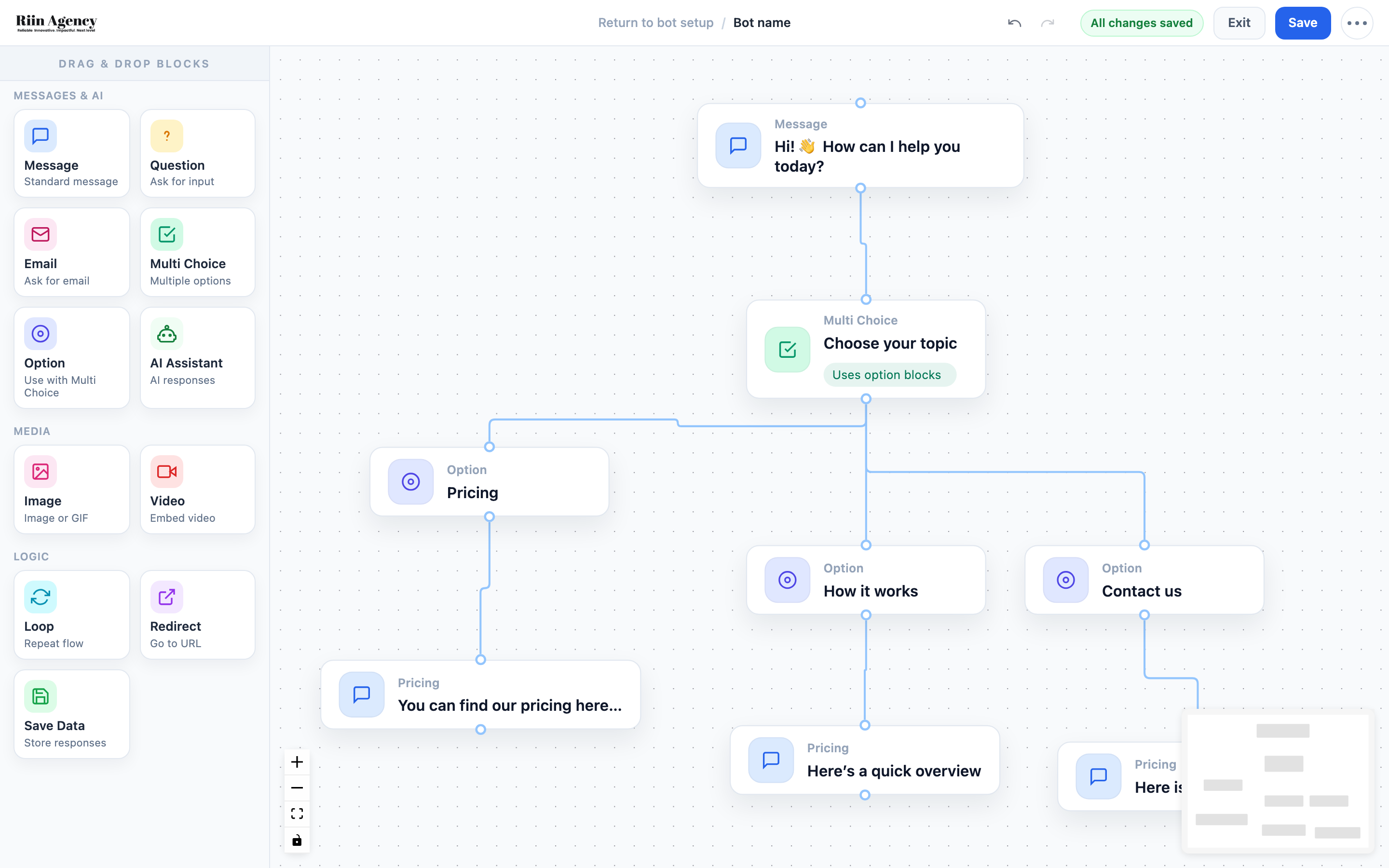
When to Use the AI Assistant Block
- A structured flow that guides users through options, but with AI available for follow-up questions
- Buttons for common paths (pricing, services, booking) and AI for open-ended “other questions”
- A lead qualification flow that hands off to AI for personalized responses, then returns to the flow for next steps
How to Set It Up
- Open your bot’s Flow Builder
- Build your button-based flow as usual (Message → Multi Choice → Options)
- Where you want AI to take over, drag the AI Assistant block onto the canvas
- Connect it to the relevant Option or Message block
- Important: Always place a Message block before the AI Assistant block to let visitors know they should type something (e.g., “How can I help you? Type your question below”). The AI Assistant block is purely an input block — without a preceding message, visitors may not know to start typing.
Configuring the AI Assistant Block
Click on the AI Assistant block to open its settings panel. The key options are:
- Custom Prompt — By default, the AI Assistant uses your Global Instructions and Knowledge Source from the AI Knowledge Studio. You can optionally add a custom prompt (up to 250,000 characters) that overrides the default. This is useful when different branches of your flow need different AI behavior.
- Send AI chat log to enable integrations after — Set a timer (in minutes) for when the conversation snapshot gets sent to your enabled integrations (Google Sheets, Zapier, Make, etc.). Start with 5 minutes. If left blank, integrations won’t receive data.
Exiting AI Mode — Continuing the Flow
The AI Assistant block now supports exiting AI mode and continuing to the next block in your flow. This was the most requested feature since AI mode was introduced. There are two optional exit methods that can be used independently or together:
Max AI Replies — Set a limit on the number of AI responses (e.g., 1, 2, 3, or 4 replies). After the AI has responded that many times, the flow automatically continues to the next connected block.
Keywords and Phrases — Configure specific trigger words that exit AI mode. Enter one keyword or phrase per line. The matching is partial — if a visitor types a message containing any of your configured keywords, the flow exits AI and continues. For example, if you set “book appointment” as a keyword, a visitor typing “I want to book appointment please” would trigger the exit.
Both exit methods are optional. Without any exit conditions, the AI conversation continues indefinitely (the previous default behavior). You can inform visitors early in the flow about available keywords so they know how to proceed when ready (e.g., “Type ’done’ when you’re ready to continue”).
Example: FAQ with Lead Capture
Here’s a common pattern that combines buttons, AI, and the exit feature:
- Welcome message → Multi Choice: “Pricing” / “Our Services” / “Other Questions”
- “Other Questions” → Message: “Ask me anything! Type ’done’ when you’re ready to continue.” → AI Assistant (with keyword exit: “done”)
- After AI exit → Email block: “Before you go, leave your email so we can follow up” → Thank You message
- “Pricing” / “Our Services” → Regular button-based flow with information
Important
- Make sure your AI Knowledge Studio is configured with the right knowledge source before using the AI Assistant block.
- The AI Assistant block uses your Global Instructions by default — you only need a custom prompt if different flow branches require different AI behavior.
- Connect blocks after the AI Assistant block to define what happens when the visitor exits AI mode.