Flow Builder Explained
The Flow Builder is where you design your chatbot's conversation. Using a visual drag-and-drop interface, you connect blocks to create…
The Flow Builder is where you design your chatbot’s conversation. Using a visual drag-and-drop interface, you connect blocks to create the path your visitors will follow. This article explains how it works.
How It Works
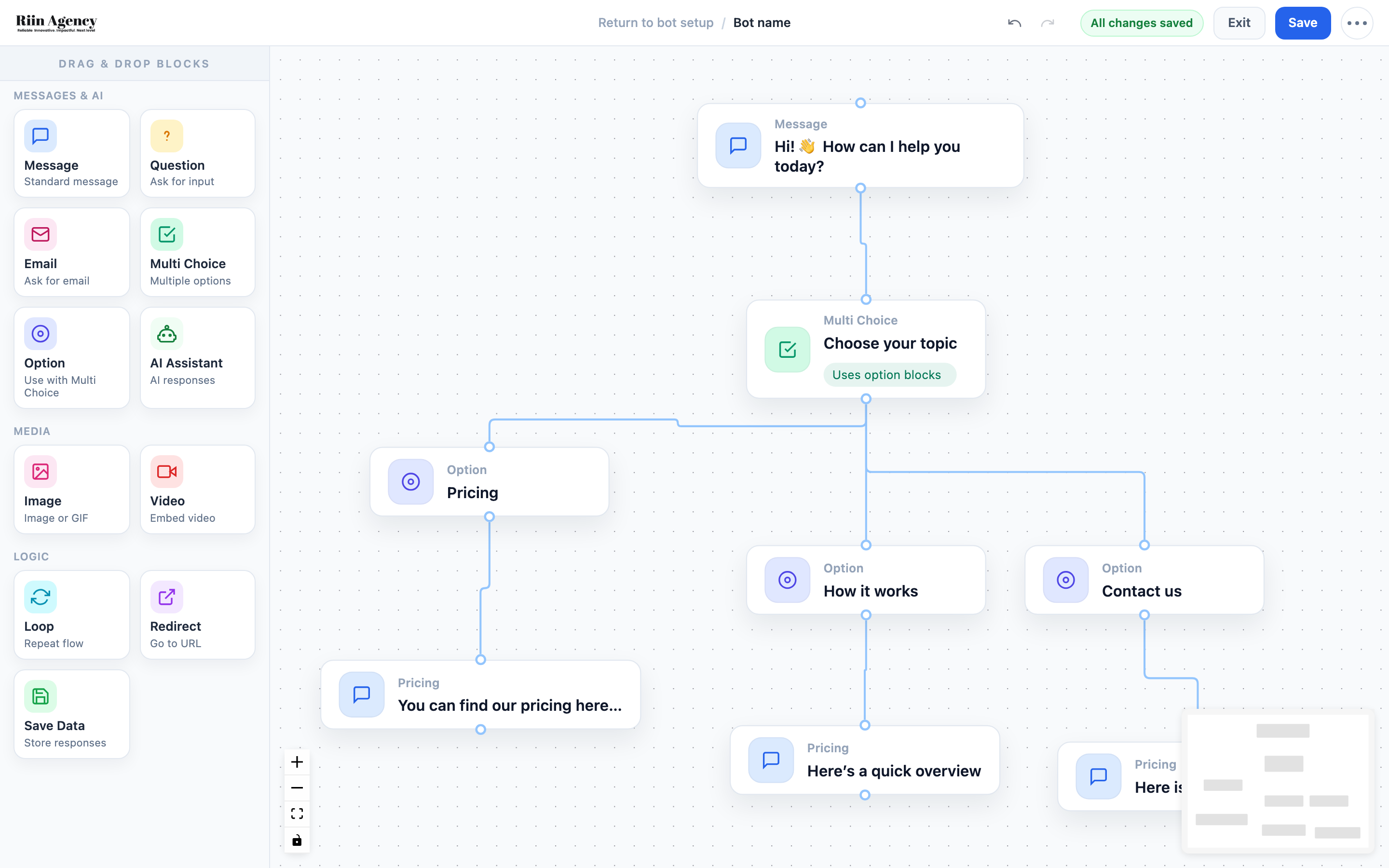
The Flow Builder has two parts: a block panel on the left with all available block types, and a canvas on the right where you build your flow. Drag blocks from the panel onto the canvas, then connect them to create your conversation path.
Blocks execute from top to bottom. Each block has a connection point at the bottom — drag from it to the next block to link them. The conversation follows these connections in order.
Block Types
Messages & AI
- Message — display a text message to the visitor. Supports bold, italic, underline, links, and emojis.
- Question — ask the visitor for free-text input. The answer is saved as a variable you can use later.
- Email — ask for an email address with built-in validation.
- Multi Choice — show clickable buttons for the visitor to choose from. Pair with Option blocks to define what happens for each choice.
- Option — defines the path for one button in a Multi Choice block. Connect it to whatever should happen next when that button is clicked.
- AI Assistant — hand the conversation over to the AI at any point. Uses the settings from your AI Knowledge Studio.
Media
- Image — display an image or GIF in the chat.
- Video — embed a video (YouTube, Vimeo, or direct URL).
Logic
- Loop — send the conversation back to an earlier point in the flow.
- Redirect — open a URL in the visitor’s browser.
Editing Blocks
Double-click any block on the canvas to open its settings panel on the right. Here you can edit the block name, message text, delay, and other options. Each block type has different settings.
Saving and Testing
Click Save in the top right to save your flow. The status indicator shows “All changes saved” (green) or “Unsaved changes” (yellow). Use the … (more) menu for options like Share Flow and Clear Flow. To preview your bot, go back to Widget Style and use the live preview there.
Use Exit to return to the bot’s Widget Style page, or click Return to bot setup in the top bar.