Create smart FAQ bot using the AI Knowledge Studio
This guide walks you through creating an AI-powered FAQ bot that answers your customers' questions automatically using the AI Knowledge…
This guide walks you through creating an AI-powered FAQ bot that answers your customers’ questions automatically using the AI Knowledge Studio.
Step 1: Create a New Bot
From your Dashboard, click the + New Bot button in the top right corner of the My Bots section. Give your bot a name — you can always change this later.
Step 2: Open the AI Knowledge Studio
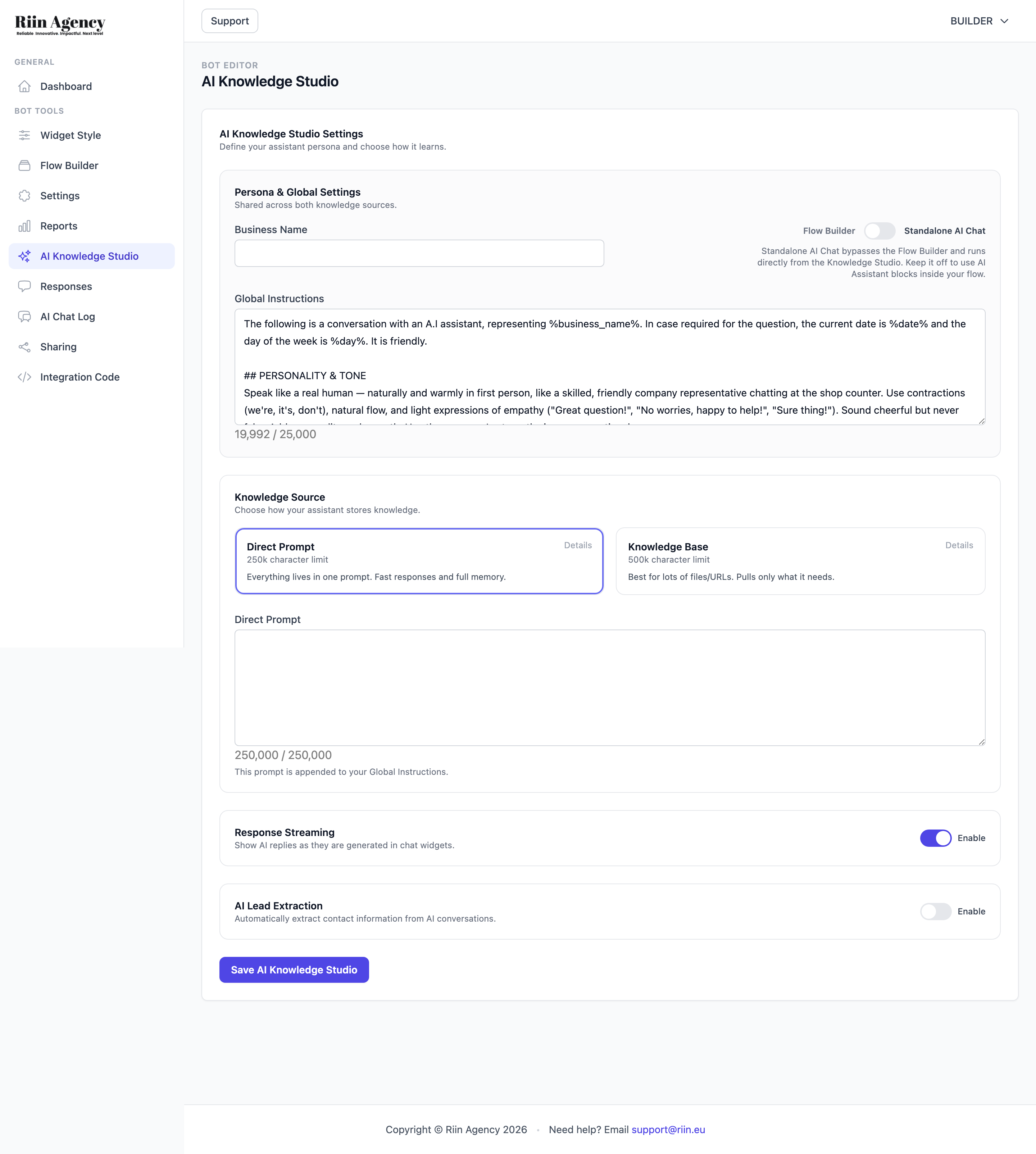
Once inside your bot, click AI Knowledge Studio in the left sidebar (under Bot Tools). This is where you configure everything about how your AI bot thinks and responds.
Step 3: Enable Standalone AI Chat
At the top of the AI Knowledge Studio page, you’ll see a Flow Builder / Standalone AI Chat toggle. Switch it to Standalone AI Chat. This bypasses the Flow Builder and runs your bot entirely from the AI Knowledge Studio — perfect for a pure FAQ bot.
Step 4: Set Your Business Name
Fill in the Business Name field under “Persona & Global Settings”. The AI uses this to identify itself in conversations.
Step 5: Customize Global Instructions
The Global Instructions text area comes pre-filled with optimized default instructions (about 1,000 characters out of the 25,000 character limit). These defaults include personality and tone settings that work well out of the box.
You can add your own custom instructions below the defaults — for example, specific rules about your business, tone preferences, or things the bot should never say. Don’t modify the platform-specific instructions (like HTML formatting rules) that are included by default.
Step 6: Add Your Knowledge
Scroll down to the Knowledge Source section and choose how your bot learns:
- Direct Prompt (250,000 character limit) — Paste your FAQ content, business information, policies, and answers directly into one text field. Best for fast responses and when your content fits in a single prompt. This is the recommended option for most FAQ bots.
- Knowledge Base (500,000 character limit) — Upload documents (PDF recommended), add URLs, or crawl your entire website. Best when you have lots of content across many pages. Remember to click Sync Knowledge Base after making changes.
For a typical FAQ bot, Direct Prompt is usually the best choice — it gives faster responses and the bot has all information in memory at once.
Step 7: Enable Lead Extraction (Optional)
At the bottom of the AI Knowledge Studio page, you’ll find AI Lead Extraction. Toggle this on if you want the AI to automatically extract contact information (like email addresses or phone numbers) from conversations. Collected data appears in the AI Chat Log.
Step 8: Customize the Widget
Click Widget Style in the sidebar to set your bot’s appearance — name, welcome message, colors, icon, and position. See the Design your chatbot widget article for details.
Step 9: Test Your Bot
Use the live preview on the Widget Style page to test your bot. Ask it some of the questions your customers typically ask and verify the answers are correct. Adjust your prompt or knowledge source as needed.
Step 10: Embed on Your Website
When you’re happy with the results, click Integration Code in the sidebar and copy the embed code. See Embedding Your Bot on Your Website for detailed instructions.