Widget Style
Make the chat widget look like part of your brand.
The Widget Style page lets you change how your bot looks on your website. Open any bot and click Widget Style in the left sidebar.
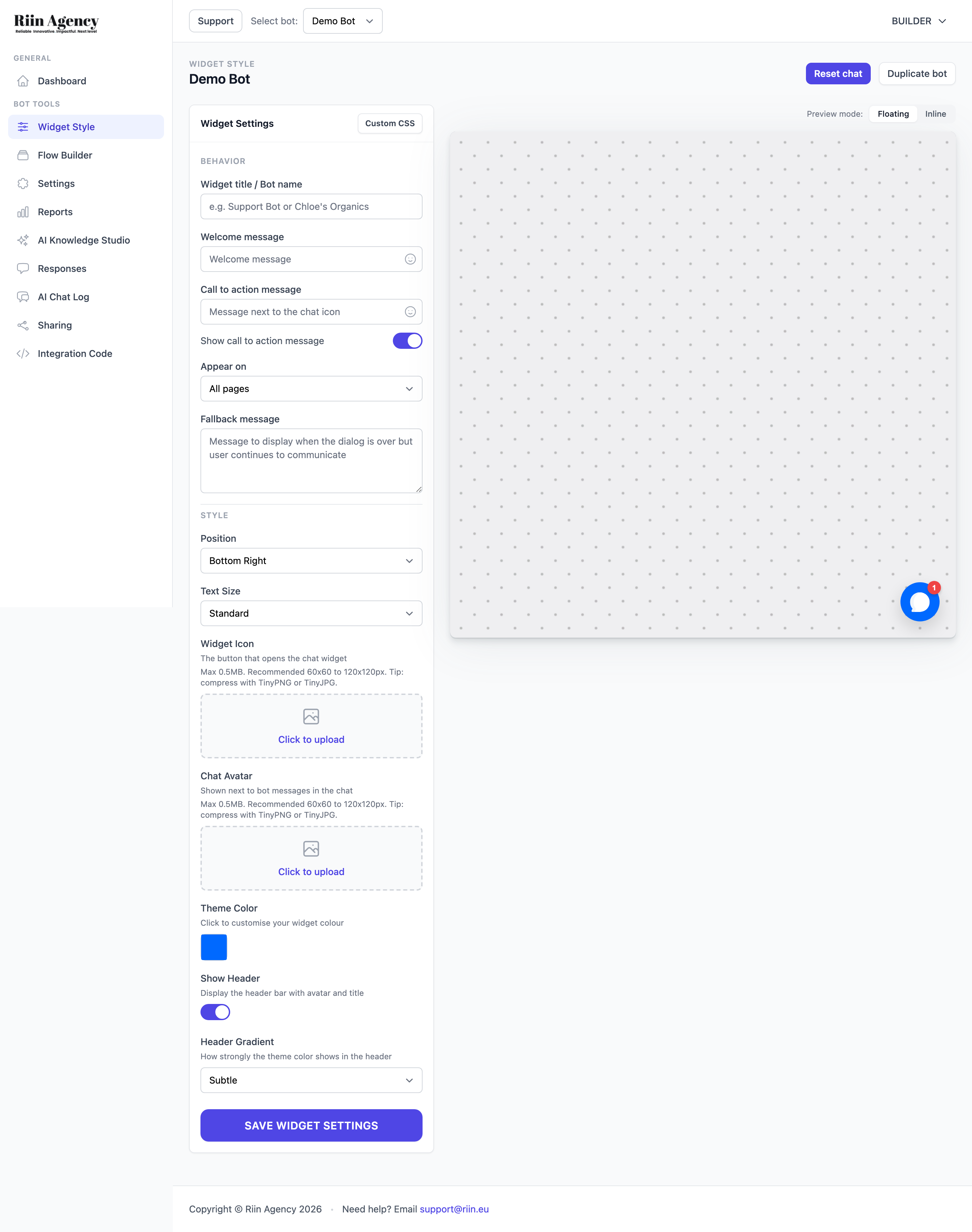
What you can change
Behavior
- Widget title / Bot name — the name at the top of the chat (e.g. "Bot", "Eva", "Help").
- Welcome message — the first thing the bot says when someone opens it.
- Call to action message — a small bubble next to the chat icon, like "Hi! Need help?". You can turn it on and off.
- Appear on — choose which pages the bot shows up on (default: all pages).
- Fallback message — what the bot says when the flow ends but the visitor keeps talking.
Style
- Position — bottom right (default), bottom left, top right, or top left.
- Text Size — small, standard, or large.
- Widget Icon — upload a 60×60 to 120×120 px image (PNG/JPG, max 0.5 MB). This is the round button.
- Chat Avatar — the small avatar next to bot messages.
- Theme Color — your brand color. Click to open the color picker.
- Show Header — toggle the bar at the top of the chat.
- Header Gradient — how strong the theme color shows in the header: subtle, medium, or strong.
Custom CSS
For advanced tweaks (rounded corners, custom shadows, font swaps, full themes), click Custom CSS at the top right.
You don't need to know CSS. Describe what you want to an AI tool (like ChatGPT or Claude) — "make this chat widget look like frosted glass" — and paste the result in. Test the result on the bot's demo page before going live.
Save
Click Save Widget Settings at the bottom of the page. The preview on the right updates right away so you can see changes before saving.
Tips
- Use your real brand color, not a guess. Bright, friendly colors get more clicks than corporate gray.
- Keep the welcome message short and warm. "Hi! 👋 Got a question?" works better than a long pitch.
- If your site has dark mode, test the widget in both light and dark.
Create smart FAQ bot using the AI Knowledge Studio
This guide walks you through creating an AI-powered FAQ bot that answers your customers' questions automatically using the AI Knowledge…
Design your chatbot widget
The Widget Style page controls how your chatbot looks and behaves when visitors see it on your website. Open any…