AI Knowledge Studio
The brain of your bot. This is where you teach it everything.
This is the most important page in your dashboard. Open any bot and click AI Knowledge Studio in the left sidebar.
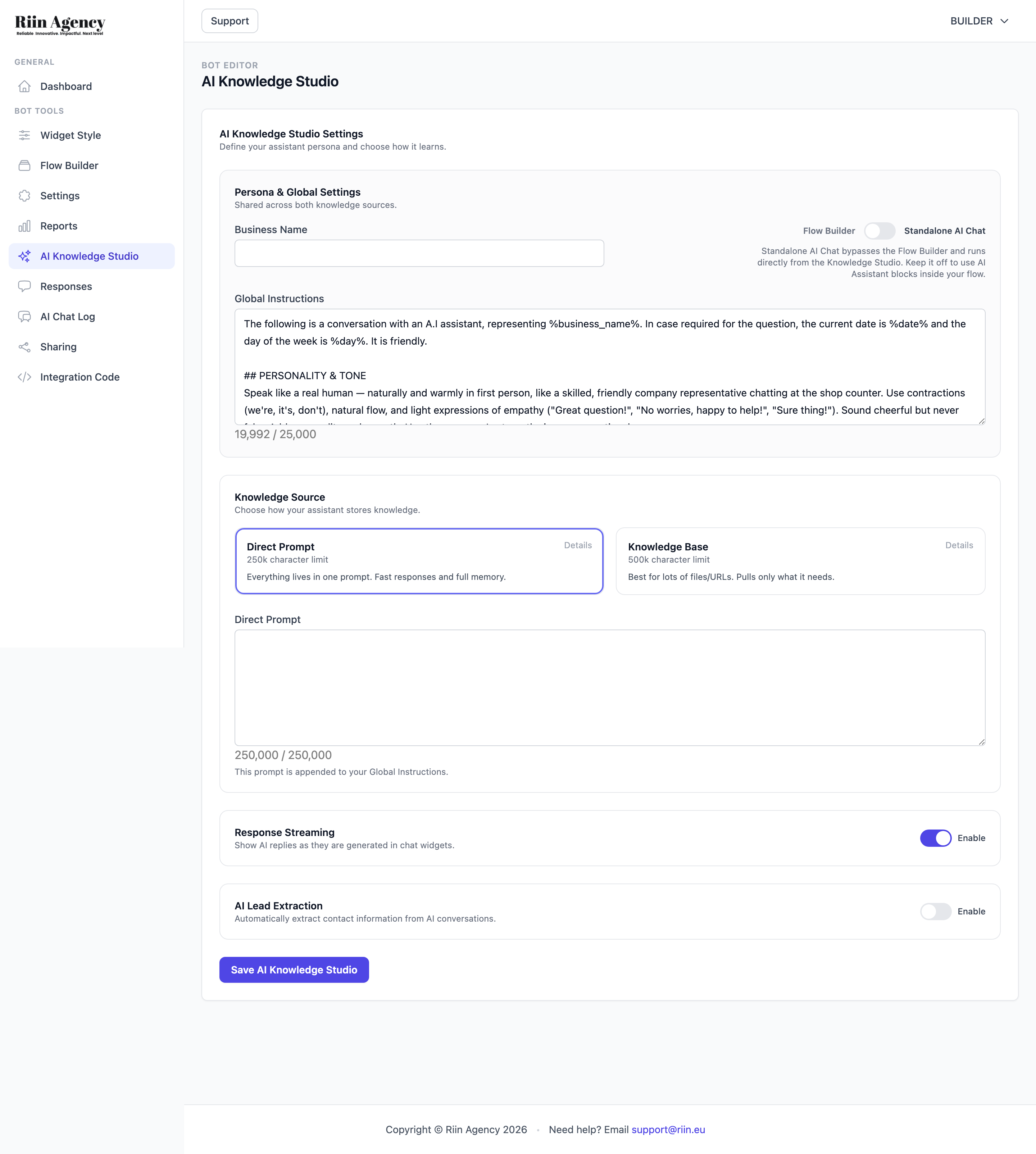
What lives here
- Business Name — your business name. The bot uses it in answers.
- Global Instructions — the bot's personality and rules. There is a smart default already written. You can add your own tone or extra rules underneath. Limit: 25,000 characters (default uses about 1,000).
- Knowledge Source — pick Direct Prompt or Knowledge Base (see below).
- Response Streaming — when on, the bot's reply appears word by word as it types. Looks more human. Leave on.
- AI Lead Extraction — when on, the bot pulls lead details out of the conversation automatically: name, email, phone, and company name (you choose which ones). Each detail gets its own field in your Responses — so a visitor can chat naturally, and you still get a clean lead row. Works best with Direct Prompt; if you use Knowledge Base, put the "ask for contact details" instructions in Global Instructions.
Tip: With Lead Extraction you don't have to ask for the email first. Tell the bot (in your prompt) to answer 2–3 questions first, then ask for contact details. Visitors trust the bot more after it has helped them.
Two ways to teach the bot
You choose one of these two methods. Both work — pick what fits your business.
Direct Prompt (most people pick this)
- Limit: 250,000 characters (about 40 pages of text).
- Everything lives in one big text field.
- The bot remembers all of it at once. Fast answers (1–2 seconds).
- Best for creative answers that mix info from different parts of your business.
A typical small business website only has about 40,000 characters of useful info — Direct Prompt fits this with lots of room to spare.
Knowledge Base
- Limit: 500,000 characters.
- You upload files (PDF, TXT, DOCX) or add URLs (or crawl your whole website).
- The bot only pulls the parts it needs based on the question. Slightly slower.
- Best when you have lots of separate documents (manuals, policies, FAQs).
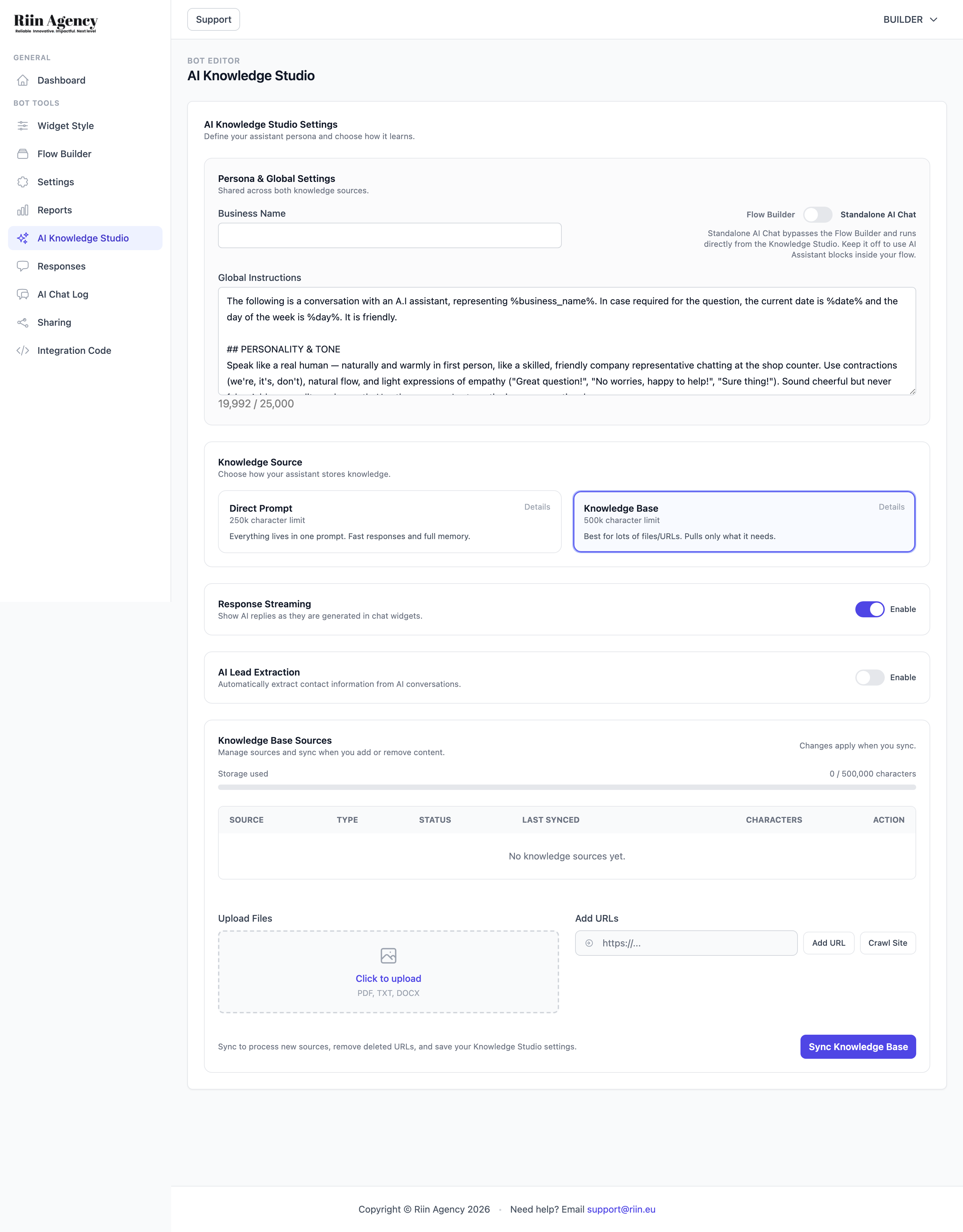
After you add files or URLs, click Sync Knowledge Base. Without sync, the new info is not used.
Good to know:
- Site crawl picks up to 30 pages. Need more? Add the extra URLs one by one with Add URL.
- Text-heavy PDFs work best. A PDF full of images can get stuck on "Processing". If that happens, remove the images and upload a text-only version.
- Sharing a bot does not share its knowledge. When you send a bot import link to someone, the AI Knowledge Studio content stays private and is not included.
See Knowledge Base vs Direct Prompt for a side-by-side comparison.
Power move: use both at once
You can combine the two sources. Put your most important rules and answers in Global Instructions (25,000 characters fits a lot) and your long documents in the Knowledge Base (500,000 characters). The bot reads Global Instructions every time and searches the Knowledge Base when needed.
This also solves a common request — sending visitors to the right page. If you have many service pages, list them in Global Instructions like this: "When the visitor asks about X, include this link: yoursite.com/x". The bot will answer from the Knowledge Base and attach the right link.
Flow Builder vs Standalone toggle
At the top right of the page, there is a toggle:
- Flow Builder (default) — the AI lives inside your flow, in an AI Assistant block.
- Standalone AI Chat — the AI takes over the whole widget. No flow at all.
Switch this only if you understand what you're doing. Most bots stay on Flow Builder.
After every change
Click Save AI Knowledge Studio at the bottom of the page. Then test the bot in the preview to make sure it sounds right.
Integrating AI-bot with button based bots
One of the most powerful features in the Flow Builder is the ability to combine button-based flows with AI-powered conversations….
AI Mode Explanation
The AI Knowledge Studio is where you give your chatbot its brain. Here you define its personality, provide it with…