Integrating Your bot
Integrations let your bot send data to external tools automatically — like adding leads to a spreadsheet, triggering email campaigns,…
Integrations let your bot send data to external tools automatically — like adding leads to a spreadsheet, triggering email campaigns, or sending data to automation platforms. You set up integrations in Settings → Integrations tab inside any bot.
What Can Integrations Do?
With integrations enabled, your bot can automatically:
- Log conversations and lead data to a Google Sheet
- Trigger automated workflows through Zapier
- Run advanced automation scenarios via Make (formerly Integromat)
- Add subscribers to Mailchimp email lists
How to Set Up Integrations
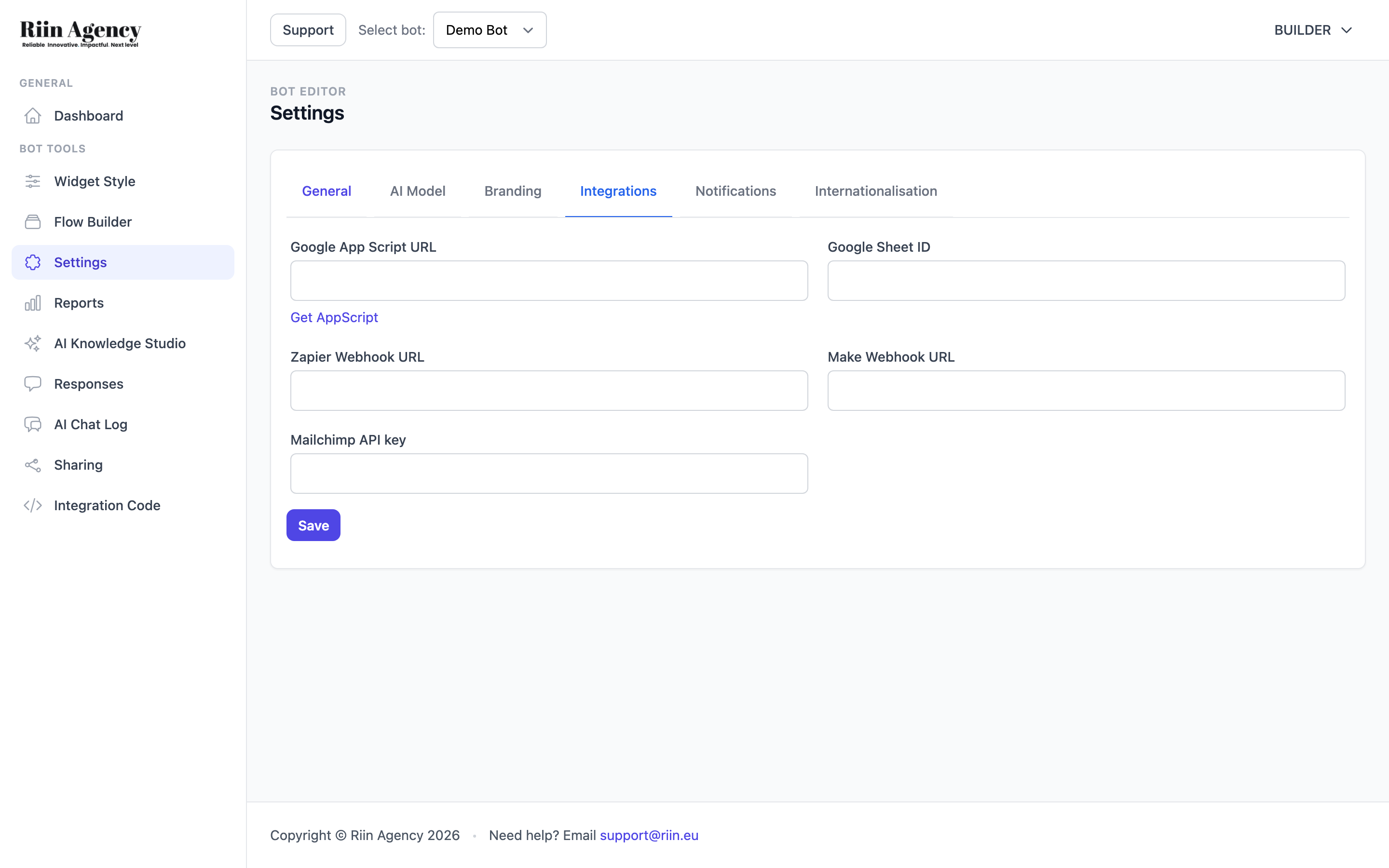
Open your bot, go to Settings in the sidebar, and click the Integrations tab. You’ll see fields for each available integration:
- Google App Script URL + Google Sheet ID — Paste your Google Apps Script URL and Sheet ID to automatically send data to Google Sheets. Click the “Get AppScript” link for help setting up the script.
- Zapier Webhook URL — Paste your Zapier webhook URL to trigger Zaps when your bot collects data.
- Make Webhook URL — Paste your Make (Integromat) webhook URL to trigger scenarios.
- Mailchimp API key — Paste your Mailchimp API key to automatically add leads to your email lists.
After filling in the fields, click Save.
Important: Integration Timer
For integrations to work, your bot needs to know when to send the conversation data. This is controlled by the “Send AI chat log to enable integrations after” timer in your AI Assistant block settings (inside Flow Builder).
- Set this to 5 minutes to start — most bot conversations don’t last longer than that.
- Increase to 10 minutes if you notice incomplete conversation data.
- If the timer is left blank, chat logs will not be captured and integrations won’t receive data.
Requirements
- Integrations require using the Flow Builder (not Standalone AI Chat mode). Even a simple flow (one message block + AI Assistant block) is enough.
- If you’re using Standalone AI Chat, you can still view conversations in the AI Chat Log section, but automatic integrations won’t trigger.
Tips
- Set up integrations after your bot flow is finalized, so you know exactly which data fields will be available.
- Test the integration by running through your bot and checking that data arrives in the external tool.
- Use Zapier or Make as a bridge if you need to connect to tools not directly supported (like Slack, HubSpot, or other CRMs).