Embedding Your Bot
Copy one line of code, paste it on your site. Done.
To show your bot on your website, you paste a small piece of code into your site. It is one line. You only do it once.
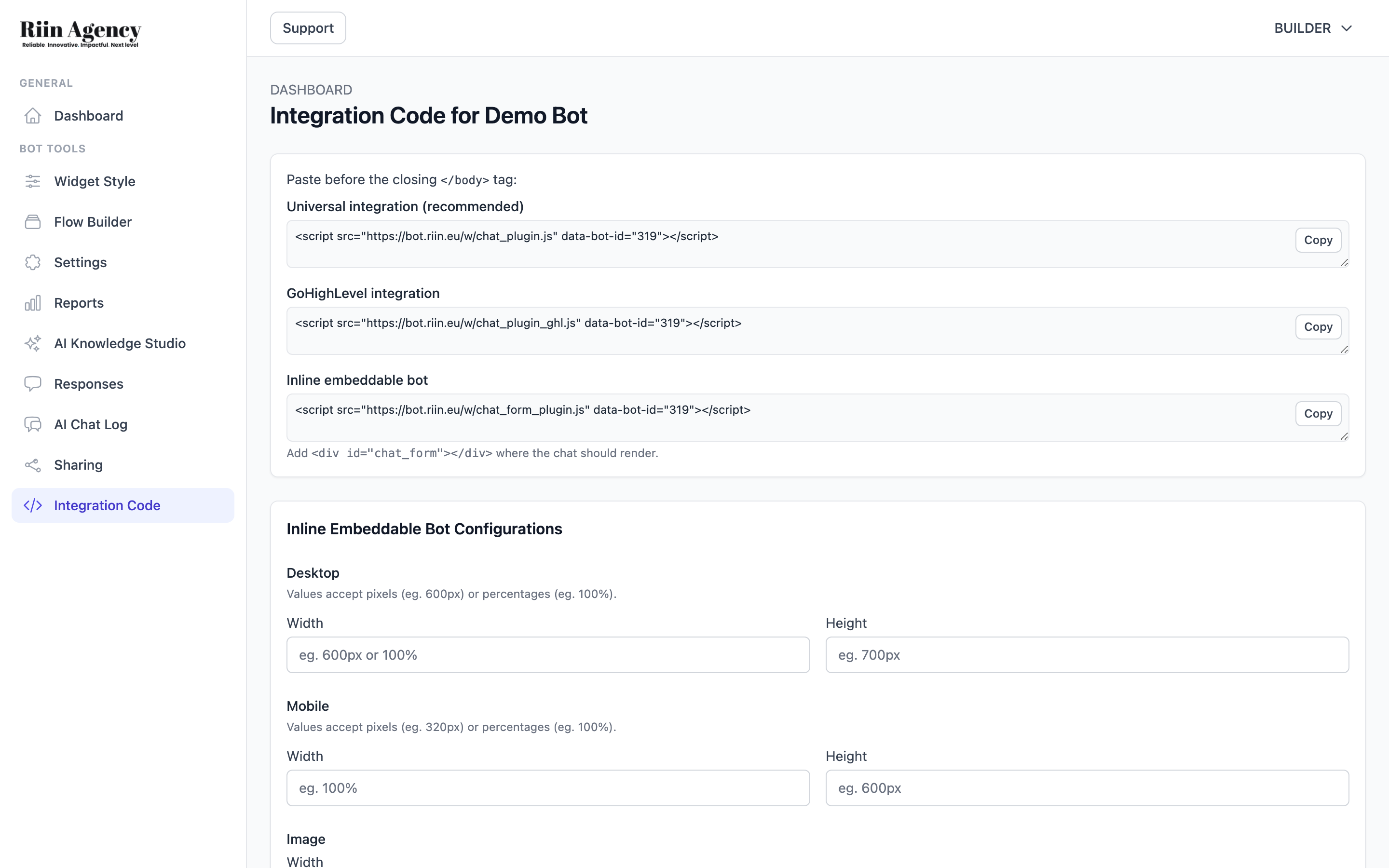
Find the code
- Open your bot.
- Click Integration Code in the left sidebar.
- Pick the right snippet (see below).
- Click Copy.
Three ways to embed
1. Universal (most websites)
Use this for WordPress, Wix, Squarespace, Webflow, or a custom site.
<script src="https://bot.riin.eu/w/chat_plugin.js" data-bot-id="YOUR_BOT_ID"></script>Paste it just before the closing </body> tag.
2. GoHighLevel
GoHighLevel needs a special version. Use this snippet instead of the universal one.
<script src="https://bot.riin.eu/w/chat_plugin_ghl.js" data-bot-id="YOUR_BOT_ID"></script>3. Inline (embedded in the page, not a floating button)
Use this when you want the bot inside a page (like a contact form), not as a floating button.
<div id="chat_form"></div>
<script src="https://bot.riin.eu/w/chat_form_plugin.js" data-bot-id="YOUR_BOT_ID"></script>
In the same Integration Code page, you can set the width and height for desktop, mobile, and image.
Important: domain whitelist
By default, your bot can show on any website that uses the script. To lock it to your own site, go to Settings → General → Domain whitelist and add your domain (e.g. mysite.com). Multiple domains? Comma-separated.
Need help installing?
If you're on WordPress and the script editor scares you, we install the bot for you as part of our WordPress maintenance plans. Free for existing maintenance customers.