
This is your main dashboard. From here, you can create, manage, and edit all of your chatbots.
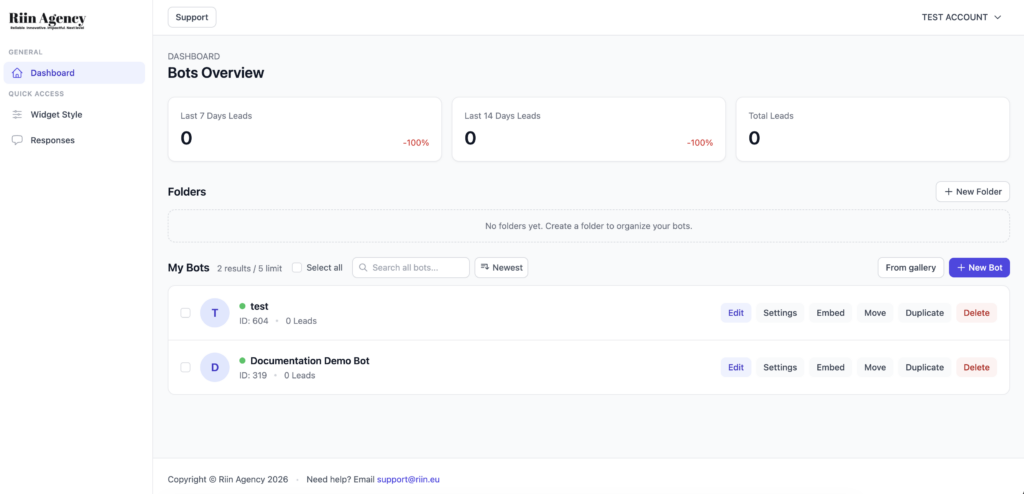
(Full dashboard overview)
Bots Overview
The top section gives you a quick overview of your bots and activity.
- Last 7 / 14 Days Leads – how many users your bots have captured recently.
- Total Leads – the total number of leads collected by all bots.
If you are new, these numbers may be zero. That’s completely normal.

(Leads summary cards)
Folders
Folders help you organize your bots.
- Use folders if you have multiple bots for different websites or clients.
- You can safely ignore folders when starting out.

(Folders section)
My Bots
This is the most important section.
Here you can see all bots in your account.
- Edit – open the bot and build the conversation.
- Settings – control bot behavior and advanced options.
- Embed – get the code to install the bot on your website.
- Duplicate – copy an existing bot.
- Delete – permanently remove the bot.

(My Bots list with action buttons)
Creating a new bot
To create a new chatbot:
- Click New Bot.
- Choose whether to start from scratch or from the gallery.
- Give your bot a name.
This is usually the first action new users should take.
Quick Access menu
The left menu gives you fast access to common actions:
- Widget Style – control how the chatbot looks.
- Responses – view messages and captured leads.
You can explore these later. For now, focus on creating your first bot.